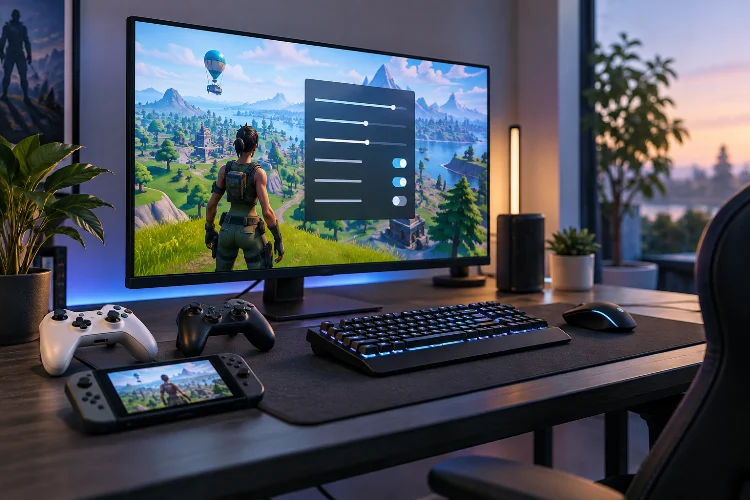
Fortnite can run on everything from a powerful gaming PC to a handheld Nintendo console, but the best settings are definitely not identical across every platform.
PC players can aggressively reduce visual quality for higher frame rates, while console players have fewer graphics options and need to focus more on refresh rate, sensitivity, controls, and visibility.
Finding the Best Fortnite Settings for PC, PS5, Xbox, and Switch is really about balancing three things: smooth performance, clear visuals, and controls that feel predictable during a fight.
Fancy shadows look nice, but they become much less important when an opponent suddenly edits through a wall two meters away. Competitive players also tend to favor performance over cinematic graphics.
Current ProSettings data covers hundreds of Fortnite professionals and shows Performance rendering, reduced graphical settings, high refresh rates, and carefully tuned sensitivities appearing repeatedly in competitive setups.
Here is a practical setup you can use as a starting point.
Best Fortnite PC Settings for Maximum FPS
PC gives you considerably more control than consoles, which means you can optimize Fortnite around your hardware.
For competitive play, Performance – Lower Graphical Fidelity is usually the best rendering mode if maximum FPS and responsiveness are your priorities.
Epic says Performance Mode is specifically intended to improve performance on lower scalability settings and less powerful hardware.
A solid competitive setup looks like this:
| Setting | Recommended |
|---|---|
| Window Mode | Fullscreen |
| Resolution | Native, usually 1920×1080 |
| Frame Rate Limit | Match a stable target |
| V-Sync | Off |
| Rendering Mode | Performance |
| 3D Resolution | 100% |
| View Distance | Medium or Far |
| Textures | Low |
| Shadows | Off |
| Effects | Low |
| Post Processing | Low |
| Motion Blur | Off |
| Show FPS | On |
Keeping 3D Resolution at 100% is important because reducing it too aggressively makes distant opponents harder to identify. Epic’s troubleshooting guidance similarly recommends starting with low quality settings while keeping 3D Resolution at 100%.
Fortnite currently allows frame-rate limits up to 360 FPS through its settings. Do not automatically choose Unlimited, though. A stable 165 or 240 FPS can feel better than constantly jumping between 170 and 300 FPS.
Performance Mode or DirectX 12?
Performance Mode is the obvious choice for players chasing maximum competitive performance, especially on older or mid-range PCs.
It removes or simplifies expensive graphical effects that can hurt frame rates. Many competitive players use it precisely because Fortnite’s building fights can become much heavier on the system than simply standing in an empty field.
DirectX 12 can still make sense on stronger PCs. It supports Fortnite’s more advanced graphics options, including technologies such as NVIDIA DLSS, Intel XeSS, and Temporal Super Resolution where compatible.
Epic notes that these options can improve image quality or performance by using different reconstruction methods.
For ranked or tournament play, start with Performance Mode. If your computer already delivers extremely stable high FPS, test DirectX 12 and compare frametimes rather than only looking at the maximum FPS number.
One important detail: Fortnite’s competitive modes are currently restricted to a 16:9 aspect ratio, so trying to create an extreme stretched-resolution advantage is not especially usefull for Ranked or tournament modes.
Best Fortnite Settings for PS5
The biggest PS5 setting to consider is 120 FPS Mode.
Epic officially supports 120 FPS on PlayStation 5 when your display supports a refresh rate of at least 120Hz. You first need to select Performance Mode under the PS5’s Game Presets, then enable 120 FPS Mode inside Fortnite’s Video settings.
For competitive Fortnite, the recommended PS5 setup is therefore straightforward: enable 120Hz on a compatible display, switch Fortnite to 120 FPS, turn off unnecessary motion effects, and focus on responsive controller settings.
There is a visual trade-off.
When 120 FPS Mode is enabled, you give up some of Fortnite’s more advanced graphical features. Epic notes that features such as Nanite, Lumen, Virtual Shadow Maps, and certain higher-quality rendering options require 120 FPS Mode to be disabled.
For competitive play, 120 FPS is generally the more practical priority. If you mainly play casually and want Fortnite to look as impressive as possible on a 4K television, the standard 60 FPS visual mode becomes more attractive.
Best Fortnite Settings for Xbox
Xbox Series X|S players have a similar choice.
To use Fortnite at 120 FPS, your Xbox must first be configured for a 120Hz refresh rate under Settings > General > TV & Display Options. After that, open Fortnite’s Video settings and enable 120 FPS Mode.
A compatible monitor or TV is essential. If your display only runs at 60Hz, switching random Fortnite options will not magically create a visible 120Hz experience.
It is also important not to confuse Fortnite’s PC Performance Mode with console performance settings.
Epic currently states that the dedicated Performance Mode rendering option is not available on consoles. PS5 and Xbox Series X|S instead use the separate 120 FPS option.
So for Xbox players, the priorities are 120Hz output where supported, low-latency display settings, sensible controller sensitivity, and a reliable wired or low-latency network connection.
Best Fortnite Controller Sensitivity
There is no universal perfect Fortnite sensitivity, but you need enough speed to turn and build quickly without making ADS aim uncontrollable.
A reasonable starting setup is:
Look Horizontal: 40–50%
Look Vertical: 40–50%
ADS Horizontal: 10–17%
ADS Vertical: 10–17%
Build Multiplier: 1.8x–2.2x
Edit Multiplier: 1.8x–2.2x
Turning Boost: 0%
Deadzone: roughly 5–10%
These are starting points rather than strict rules. ProSettings’ 2026 controller guide suggests 40-60% look speeds, 15-17% ADS sensitivity, zero turning boost, and low deadzones, while individual professional profiles can vary substantially.
Deadzone deserves particular attention.
Lower deadzones make sticks respond sooner, but going too low can expose stick drift. Start near 5-8%, then increase it only until unwanted movement disappears.
Whether you choose Linear or Exponential is also personal. Linear feels more immediate and can be excellent during close-range building and editing, while Exponential provides more gradual stick acceleration and can make longer-range aim easier for some players.
Do not change sensitivity after every bad match. Give your hands time to actually learn the settings.
Best Mouse and Keyboard Settings on PC
Mouse players should follow the same idea: controllable movement beats ridiculously high sensitivity.
Many competitive Fortnite players use 800 DPI, although their in-game sensitivities vary considerably. Current professional profiles tracked by ProSettings include examples around 4.6%, 5.5%, 6.4%, 9%, and higher at 800 DPI.
A good beginner starting range is around 800 DPI with 5–8% X and Y sensitivity.
Your targeting and scope sensitivities should normally be lower than your normal turning sensitivity. That makes small adjustments easier when tracking an enemy at medium or long range.
Keybinds matter too. Building pieces should be reachable without forcing your movement fingers into awkward positions. Mouse side buttons are popular for walls or ramps because your thumb can activate them without leaving WASD.
Comfort matters more than copying someone’s keyboard layout exactly.
Best Fortnite Settings for Nintendo Switch and Switch 2
Switch requires a different strategy because you do not have PC-style graphics controls.
On the original Nintendo Switch, focus on a clear HUD, comfortable sensitivity, stable internet, and controller responsiveness rather than attempting to optimize shadows or rendering modes that you cannot independently control.
Nintendo Switch 2 is a much bigger upgrade.
Fortnite officially runs at 60 FPS on Switch 2, with resolutions up to 2176×1224 while docked and 1600×900 in handheld mode. It also features improved view distance, textures, shadows, water rendering, and higher-detail geometry compared with the original Switch version.
For competitive play, docked mode with a good display can make enemies easier to see, but portable play remains completely viable.
Switch 2 also supports optional Joy-Con 2 mouse controls, giving players another input method beyond traditional sticks.
That makes Fortnite on Switch 2 considerably more flexible than earlier Nintendo versions.
Should You Use Gyro Aiming?
Gyro is one of Fortnite’s most underated controller features.
It is supported on Nintendo Switch, PS5, compatible controllers on PC, and several other gyro-capable platforms. Moving the controller physically allows much finer camera adjustments than relying entirely on the right analog stick.
For beginners, Epic recommends starting with gyro enabled mainly while aiming rather than immediately activating more complicated options such as Flick Stick. This lets normal stick movement handle larger turns while gyro handles precise corrections.
There is one important trade-off: Fortnite disables aim assist whenever gyro aiming is active.
So gyro is not automatically better. It is a different control method that rewards practice.
Switch and PS5 players who struggle with tiny analog-stick corrections should experiment with it for several matches before deciding whether to keep it.
Audio and Visual Settings That Help in Fights
Performance settings are only useful if you can actually understand what is happening around you.
Keep sound effects high enough to clearly hear footsteps, gunfire, vehicles, gliders, healing, and nearby fights. Music can be lowered if it becomes distracting during matches.
Fortnite’s accessibility options are also worth exploring. Visualize Sound Effects can provide additional visual information about nearby sounds, which is useful when multiple noises are happening at once.
For visuals, Motion Blur should usually be disabled for competitive play. Fast camera movement is already chaotic during close-range fights, and extra blur makes tracking opponents more dificult.
Epic confirms that Motion Blur can be switched through the Video settings, although the option is not displayed when using Performance Mode.
Brightness should be comfortable rather than extreme. Increasing it slightly can improve visibility in darker environments, but an excessively washed-out image can make other details harder to recognize.
Don’t Copy Professional Settings Exactly
Professional settings are useful references, not secret cheat codes.
A Fortnite pro might use a 360Hz monitor, lightweight mouse, custom keyboard, powerful PC, and thousands of hours of muscle memory. Copying their exact sensitivity onto a completely different setup will not guarantee the same results.
Use professional configurations to identify patterns instead.
Low visual settings, high FPS, responsive inputs, relatively low mouse sensitivity, and efficient keybinds appear repeatedly because they support consistent competitive play.
Change one setting at a time, then test it in Creative, Zero Build, or normal Battle Royale matches.
If something feels better after several sessions, keep it. If your aim becomes less consistant, revert the change rather than constantly rebuilding your entire configuration.
The Best Fortnite Settings for PC, PS5, Xbox, and Switch depend heavily on your hardware, but the overall goal stays the same: prioritize stable performance, clear visibility, and predictable controls.
PC players should start with Performance Mode, low graphical settings, 100% 3D Resolution, and a stable high FPS target.
PS5 and Xbox Series X|S players with compatible displays should consider 120 FPS Mode, while Switch 2 players can take advantage of Fortnite’s 60 FPS upgrade and improved visuals.
Controller players should carefully tune sensitivity and deadzones, while mouse users should avoid unnecessarily high sensitivity.
Use these recommendations as a baseline, spend a few matches testing them, and adjust gradually. The best Fortnite setup is ultimately the one that disappears into the background and lets you focus entirely on winning the fight.